Featured Questions
When should I take my courses?
You know your priorities, schedules, and learning needs the best. Learners retain the most information one to two months ahead of Go Live, so you might consider the September-October time frame. Elevate will start sending training reminders in the summer.
I took a course before March 2024 and it shows as incomplete.
Please see the Elevate Sponsors' Announcement regarding training.
Do I need to re-enroll in my courses?
If you have already enrolled in a course, you do not need to re-enroll. You will access the enhanced course through your Open Learning Student Dashboard (link takes you to your In-Progress courses.)
If you have not enrolled in a course, you can enroll through the On-Demand Courses page on the Elevate website.
What happens if I do not take my training? Will I lose access to Workday?
We highly encourage people to take their training. Everyone will retain access to Workday regardless of the completion of training, but completing the training will help you navigate and complete your tasks in Workday.
A subset of users have mandatory courses that they must take to retain identified security roles. For example, people assigned the Journal Entry security role must take Introduction to Accounting Journals to hold their role at Go Live. Impacted users have received information from business owners via email.
I took the course and it is still not showing as completed.
You must access all slides on the course player menu for Canvas to trigger a completion. For some courses (if you enrolled in Introduction to Workday before mid-September 2024, for example), simulation slides display on the course player menu and therefore must be accessed to complete the course.
My certificate did not regenerate after I re-took the course as it is still showing the original completion date.
The majority of people who are retaking previously completed courses will not see a regeneration of the certificate in Open Learning. You likely have access to the original cert within your Open Learning Student Dashboard, but the date will not update from last year.
That said, managers who have access to the Tableau Workday Training Dashboard will see the updated date of completion for courses retaken. You can also see your own new date of completion in the Open Learning Student Dashboard and in Canvas as well.
Why am I receiving automated emails about taking training?
All employees regardless of employee type or status are expected to complete Workday training. Please refer to this message from Elevate’s executive sponsors for more information.
Our email distribution list is updated based on the PHR data available to us roughly a week before the email is sent. Employees who have left UMD will be automatically removed from the distribution list as they are removed from the roster within PHR.
You will stop receiving reminder emails after all recommended courses are completed.
You can access your recommended courses by navigating to https://cloud.email.umd.edu/workdaytraining.
Questions about Taking On-Demand Courses
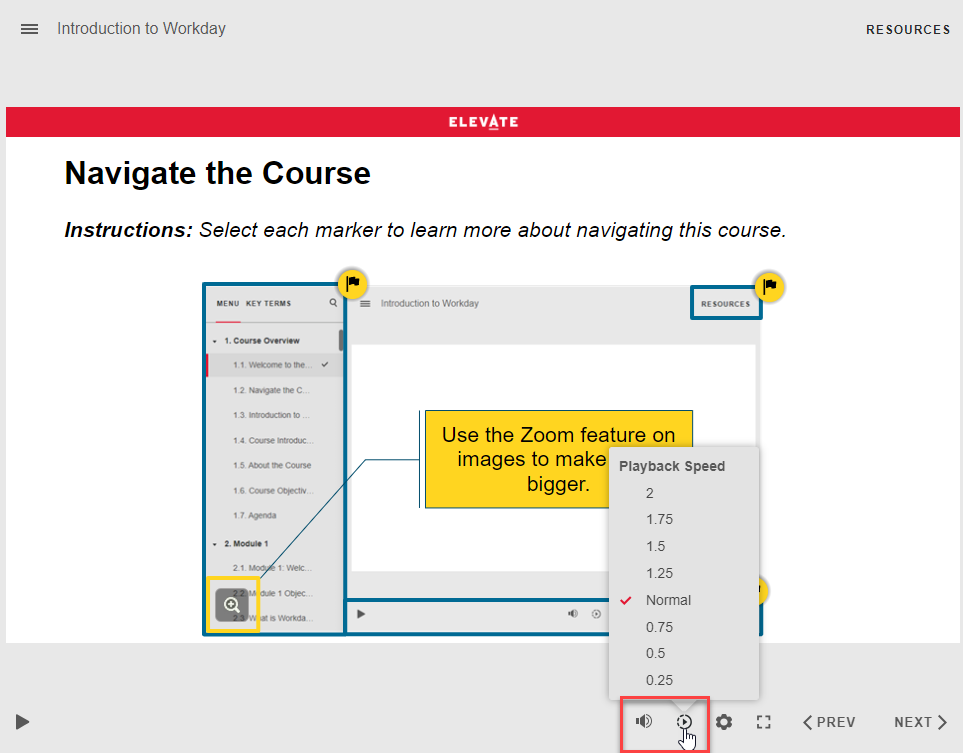
How do I turn off the audio on the on-demand courses?
Three on-demand courses contain audio components. These courses are Introduction to Workday, Using Worktags, and Finding and Viewing Reports in Workday.
In the course player of these courses, you have options to control the volume and adjust the playback speed of the audio.
How do I use keyboard shortcuts for the on-demand courses?
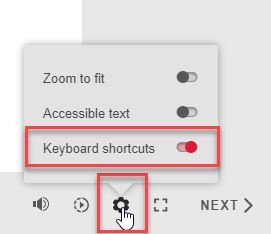
In the course player of the on-demand courses, you can enable keyboard shortcuts through the Accessibility controls menu. Learners can then press Shift+? at any time to see a list of keyboard shortcuts. There are three options for closing the shortcuts screen: press Shift+? again, press Escape, or click the X in the upper right corner.
I'm having trouble finding my course!
The Elevate site provides the links to Open Learning so that you can enroll. If you've already enrolled in courses, be sure to use Open Learning's Student Dashboard to view your in-progress courses and completed courses.
I already enrolled in a course. How do I access the course again?
The Elevate site provides the links to Open Learning so that you can enroll. If you've already enrolled in courses, be sure to use Open Learning's Student Dashboard to view your in-progress courses and completed courses.
Is there a test I have to pass?
The training courses include knowledge check questions to reinforce key concepts throughout the course. However, these questions are not graded, and there is no final test at the end of a course that you must pass.
Do I need to send my certificate of completion to anyone?
You will receive a certificate of completion, but this is for your own records only. You do not need to save the certificate to provide proof that you took the course.
How do I know if I have completed a course?
To receive completion credit for on-demand courses, make sure you are accessing all of the content visible on the course player menu.
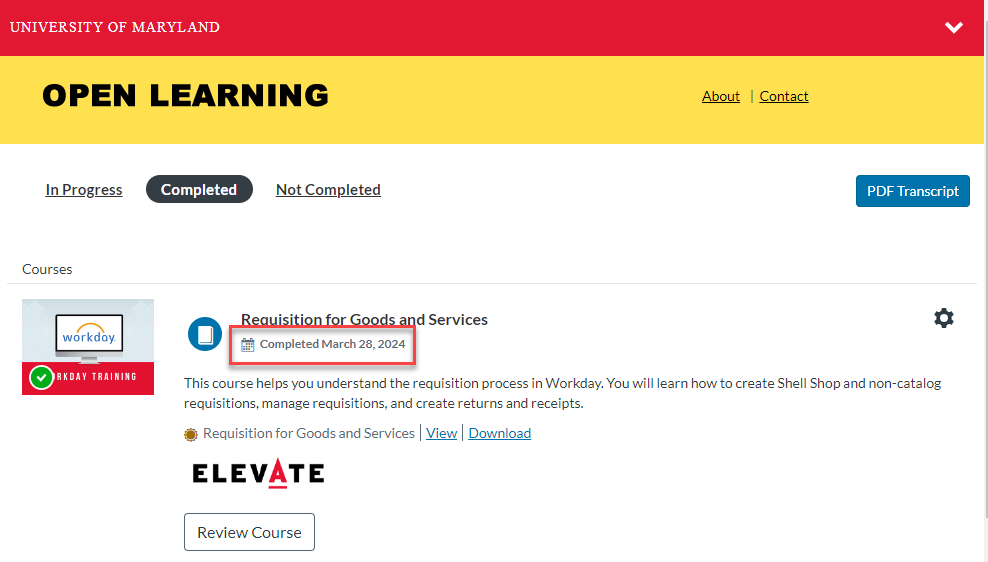
To confirm you have received course credit, visit the completed courses section of your Open Learning Student Dashboard to view the completion date.
I received a certificate before I was done with the course.
That's okay!
Courses have different thresholds on how much course content you must review to trigger a completion in Canvas. Some courses, like Time Tracking for Departments, have a lower threshold because there are different course paths a user might take. Some paths are shorter and therefore require less content to be viewed. Our training accounts for these shorter paths.
If you receive a certificate early, you should certainly finish the course to review all of the content!
How do I ask a question not in this FAQ?
Please reach out to workdaytraining@umd.edu.
Questions about Training in General
How will staff and faculty we be trained in Workday?
Training is available as of July 17, 2023. Training for the HCM and Finance modules in Workday is role-based, so users should take recommended training based on the security roles they will have in the system.
All users can take on-demand courses and access job aids within the Learning Hubs.
Users completing centralized functions may have additional courses. See Training for Central Office for more information.
Can I choose to take online or in-person training?
The majority of users will take on-demand courses. A subset of centralized roles will be taking virtual instructor-led training.
What is the time commitment for training?
Training is based on security roles, so your curriculum (and respective time commitment) looks different than someone else’s.
Everyone takes the Introduction to Workday course which is about 45 minutes.
Other general courses you may take are Finding and Viewing Reports in Workday (30 minutes) and Using Worktags (65 minutes).
A role-specific curriculum is established for each security role. The time estimates for role-specific curriculums include both recommended and optional courses.
The following table provides estimates of training time by user type. Please note that role-specific curriculums are separated into roles for Campus Units and Central Office. Typically, Central Office users will take more training that Campus Units.
| General User | HCM User | Finance User | |
|---|---|---|---|
| General Course | 45 minutes - Introduction to Workday | 45 minutes - Introduction to Workday | 45 minutes - Introduction to Workday |
| Prerequisite Courses | N/A | 30 minutes - Finding and Viewing Reports in Workday 60 minutes - HCM Core Concepts | 30 minutes - Finding and Viewing Reports in Workday 65 minutes- Using Worktags |
| Role-Specific Curriculum for Campus Unit users who complete HCM or Financial tasks | N/A | Average: ~3.75 hours Shortest: ~30 minutes Longest: ~8.5 hours |
Average: ~2.5 hours Shortest: ~1 hour Longest: ~6 hours |
| Role-Specific Curriculum for Central Office users who complete HCM or Financial tasks | N/A | Average: ~3.5 hours Shortest: ~30 minutes Longest: ~7.5 hours |
Average: ~5.5 hours Shortest: ~1 hour Longest: ~18 hours |
| Average Total Time | 45 minutes | Campus Unit: 6 hours Central Office: 5.5 hours | Campus Unit: 4.75 hours Central Office: 8 hours |
As a supervisor, can I track my direct reports’ training completion?
The Tableau Workday Training Dashboard can be used by direct supervisors to easily monitor the progress of their direct reports in completing the recommended Workday courses based on their assigned security roles. Learn more using the Use the Training Dashboard job aid.
In addition to the information on this website, your PIT Crew Lead is a great resource for questions about the security role mapping that was used to give each user their security roles.
Once you start using the system, where can we go to get quick answers (if you are stuck)?
There are several places you can go to get quick answers.
First, there will be Workday help text added by the Elevate functional teams to provide guidance directly in Workday.
Second, the Learning Hubs available on the Elevate website organize training content into easy-to-access areas based on functional area. Learning Hubs contain the links to access job aids.
Lastly, there will be a dedicated Workday support team within the Division of IT.
What opportunities will there be for department-specific training?
We are not planning to provide department-specific training.
What would be the schedule for training for central offices versus other campus coordinators?
Virtual instructor-led courses are targeted for central office-related functions in Workday. Learn more about Central training.
Will hourly workers get paid to take these courses?
Supervisors should make arrangements for employees to complete training during work hours. In no case should an hourly worker be required to complete training outside of work hours.
How do I learn more about using Open Learning's Student Dashboard?
Here's a helpful job aid.
Questions about Training Content
Will there be a "crosswalk" for key terms or codes that change from the legacy systems to Elevate/Workday?
The Elevate Program Team has developed a Glossary which has crosswalks between legacy terms and Workday Terms.
Are we going to get crosswalks from KFS to Workday?
Yes, there are crosswalks in Workday for KFS accounts numbers and KFS object codes to Workday worktags and spend/revenue categories.
Check out the Crosswalks and Guides page to see the crosswalks available.
Is there training specifically for reports?
There is a general Finding and Viewing Reports on-demand course available to everyone. This course covers how to access reports and report functionality.
More specific training in specific functional areas includes key reports available and their descriptions.
Questions about Seeing the System
Is there a sandbox environment?
Select users were given access to the Workday Readiness Tenant to become familiar with how they will get their jobs done at Go Live. This sandbox is not the production version of Workday that will go live for all users.
How do I see demos of the system?
There are simulations in the on-demand courses that provide demonstrations of key business processes.
In addition, our team has conducted a series of Workday demonstrations, or Functional Overviews, which cover different business processes in Workday. All Functional Overview sessions recordings are available on the Functional Overviews page.
Will we be able to take our own data and see it in the system while in training?
The training environment/tenant has the latest configuration and converted data as of a given date. Data will continue to be refined outside of the training environment, which you will see at Go Live.
Questions about the Tableau Training Dashboard
My recommended and optional courses do not look right.
Courses are recommended or optional based on your assigned security roles.
You can find your security roles in the Readiness Tenant by running the Role Assignments for Worker Position report. Remember to log in via SSO/CAS.
Workgroups in PHR don't match the sup orgs in Workday…
The conversion process may combine workgroups in some instances. If you share an example (Manager name), we can check with the Conversion team and confirm more details. After Go Live, there will be a request process to request changes to sup orgs.
I am having trouble accessing the Tableau Training Dashboard.
Only managers and supervisors are granted access to the Tableau Training Dashboard.
Please note: To access the dashboard, you must be connected to the UMD GlobalProtect VPN. If you don’t already have UMD GlobalProtect VPN, you can find download and access instructions at https://access.umd.edu/.
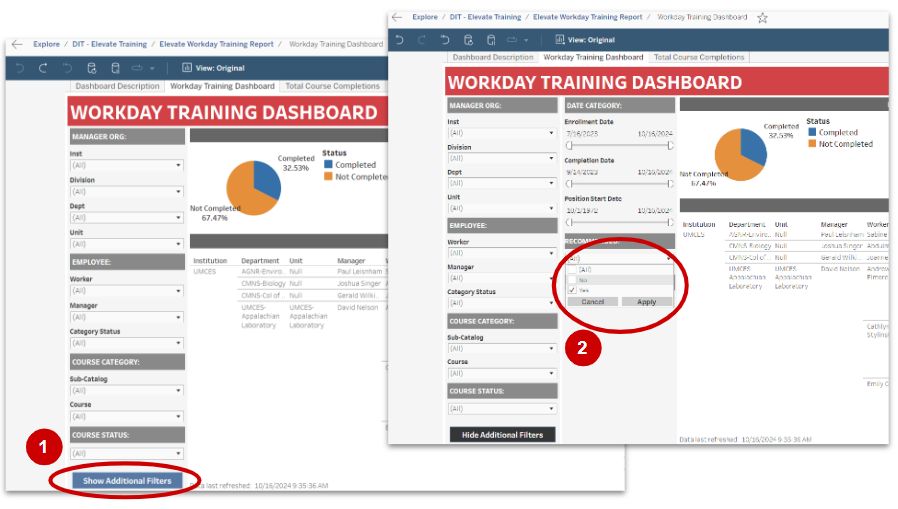
How do I filter for only recommended courses?
The Dashboard defaults to recommended and optional courses based on the user's security roles.
To view only Recommended courses:
1. Click Show Additional Filters.
2. Deselect No.